# appendfilename.py
 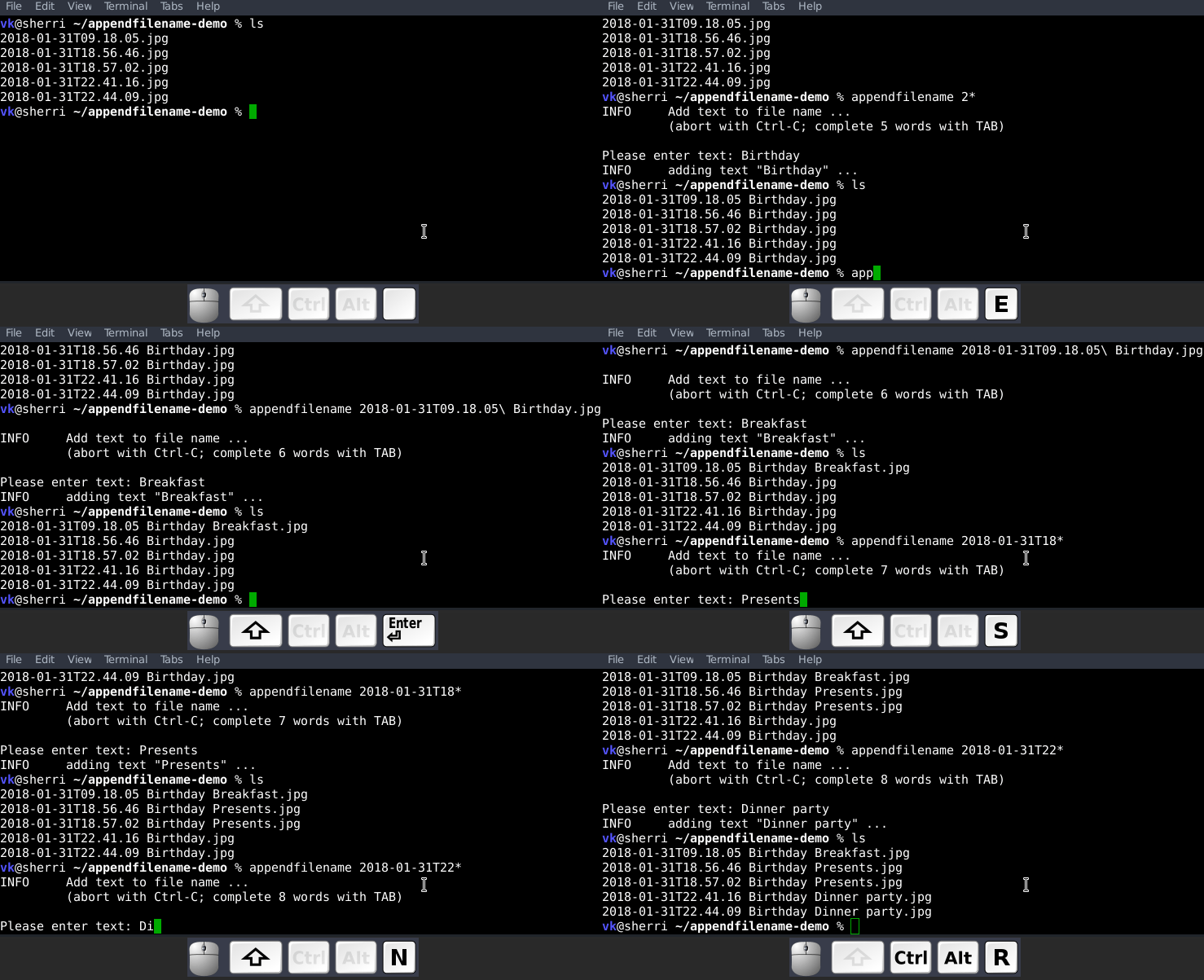
This Python script adds a string to a file name. The string gets added
between the original file name and its extension.
In case the file name contains tags as handled as with
[filetag](https://github.com/novoid/filetag), the string gets added
right before the separator between file name and tags.
Examples for adding the string "new text":
| **old file name** | **new file name** |
|----|----|
| a simple file.txt | a simple file new text.txt |
| a simple file – foo bar.txt | a simple file new text – foo bar.txt |
| 2013-05-09.jpeg | 2013-05-09 new text.jpeg |
| 2013-05-09T16.17.jpeg | 2013-05-09T16.17 new text.jpeg |
| 2013-05-09T16.17_img_00042.jpeg | 2013-05-09T16.17_img_00042 new text.jpeg |
| 2013-05-09T16.17_img_00042 – fun.jpeg | 2013-05-09T16.17_img_00042 new text – fun.jpeg |
- **Target group**: users who are able to use command line tools and who
are using tags in file names.
- Hosted on github:
## Why
Besides the fact that I am using [ISO dates and
times](https://en.wikipedia.org/wiki/Iso_date) in file names (as shown
in examples above), I am using tags with file names. To separate tags
from the file name, I am using the four separator characters: space dash
dash space.
For people familiar with [Regular
Expressions](https://en.wikipedia.org/wiki/Regex):
``` example
()? --

This Python script adds a string to a file name. The string gets added
between the original file name and its extension.
In case the file name contains tags as handled as with
[filetag](https://github.com/novoid/filetag), the string gets added
right before the separator between file name and tags.
Examples for adding the string "new text":
| **old file name** | **new file name** |
|----|----|
| a simple file.txt | a simple file new text.txt |
| a simple file – foo bar.txt | a simple file new text – foo bar.txt |
| 2013-05-09.jpeg | 2013-05-09 new text.jpeg |
| 2013-05-09T16.17.jpeg | 2013-05-09T16.17 new text.jpeg |
| 2013-05-09T16.17_img_00042.jpeg | 2013-05-09T16.17_img_00042 new text.jpeg |
| 2013-05-09T16.17_img_00042 – fun.jpeg | 2013-05-09T16.17_img_00042 new text – fun.jpeg |
- **Target group**: users who are able to use command line tools and who
are using tags in file names.
- Hosted on github:
## Why
Besides the fact that I am using [ISO dates and
times](https://en.wikipedia.org/wiki/Iso_date) in file names (as shown
in examples above), I am using tags with file names. To separate tags
from the file name, I am using the four separator characters: space dash
dash space.
For people familiar with [Regular
Expressions](https://en.wikipedia.org/wiki/Regex):
``` example
()? -- .extension
```
For tagging, please refer to
[filetag](https://github.com/novoid/filetag) and its documentation.
If I want to add a descriptive file name to files like , e.g. ,
photographs, I have to rename the original file and insert the
description at the right spot of the existing file name.
This is an error-prone task. If I am not careful, I can overwrite parts
of the old file name I wanted to keep. Or I could mess up spacing
between the old file name, tags, and the new description.
Therefore, I wrote this script that adds a description to the file name
without removing old file name parts or tags.
You may like to add this tool to your image or file manager of choice. I
added mine to [geeqie](http://geeqie.sourceforge.net/) which is my
favorite image viewer on GNU/Linux.
## Usage
``` example
appendfilename --text foo a_file_name.txt
```
… adds "foo" such that it results in `a_file_name foo.txt`
``` example
appendfilename a_file_name.txt
```
… (implicit) interactive mode: asking for the string to add from the
user
``` example
appendfilename --text "foo bar" "file name 1.jpg" "file name 2 -- foo.txt" "file name 3 -- bar.csv"
```
… adds tag "foo" such that it results in …
``` example
"file name 1 foo bar.jpg"
"file name 2 foo bar -- foo.txt"
"file name 3 foo bar -- bar.csv"
```
For a complete list of parameters, please try:
``` example
appendfilename --help
```
The file names within the current working directory is read in and all
found words can be completed via TAB.
------------------------------------------------------------------------
``` bash
./appendfilename/__init__.py --help
```
Usage:
appendfilename []
This tool inserts text between the old file name and optional tags or file extension.
Text within file names is placed between the actual file name and
the file extension or (if found) between the actual file namd and
a set of tags separated with " -- ".
Update for the Boss .pptx
2013-05-16T15.31.42 Error message -- screenshot projectB.png
When renaming a symbolic link whose source file has a matching file
name, the source file gets renamed as well.
Example usages:
appendfilename --text="of projectA" "the presentation.pptx"
... results in "the presentation of projectA.pptx"
appendfilename "2013-05-09T16.17_img_00042 -- fun.jpeg"
... with interactive input of "Peter" results in:
"2013-05-09T16.17_img_00042 Peter -- fun.jpeg"
:copyright: (c) 2013 or later by Karl Voit
:license: GPL v3 or any later version
:URL: https://github.com/novoid/appendfilename
:bugreports: via github or
:version: 2019-10-19
Options:
-h, --help show this help message and exit
-t TEXT, --text=TEXT the text to add to the file name
-p, --prepend Do the opposite: instead of appending the text,
prepend the text
--smart-prepend Like "--prepend" but do respect date/time-stamps:
insert new text between "YYYY-MM-DD(Thh.mm(.ss))" and
rest
-s, --dryrun enable dryrun mode: just simulate what would happen,
do not modify file(s)
-v, --verbose enable verbose mode
-q, --quiet enable quiet mode
--version display version and exit
## Installation
Get it from [PyPI](https://pypi.org/project/appendfilename/\\) by the
command `pip install appendfilename`. If you clone or fetch it from
[GitHub](https://github.com/novoid/appendfilename), enter the folder of
your copy and resolve the dependencies defined in `pyproject.toml` by
either
``` bash
pip install .
pip install .[dev]
```
for use, or development. In the later case, don't forget the optional
`-e` flag to render the installation editable.
## Smart Prepend
Although `appendfilename` was created mainly to *add text at the end of
a file name*, it may also insert text at the beginning of a file name
using the `--prepend` parameter.
A variance of that is `--smart-prepend`. Following examples demonstrate
the effects on smart prepending "new text" with various file names:
``` example
new text foo bar.txt
2019-10-20 new text foo bar.txt
2019-10-20T12.34 new text foo bar.txt
2019-10-20T12.34.56 new text foo bar.txt
```
As you can see, `--smart-prepend` does take into account that a given
date/time-stamp according to
[date2name](https://github.com/novoid/date2name) and [this
article](https://karl-voit.at/managing-digital-photographs/) will always
stay the first part of a file name, prepending the "new text" between
the date/time-stamp and the rest.
# Integration Into Common Tools
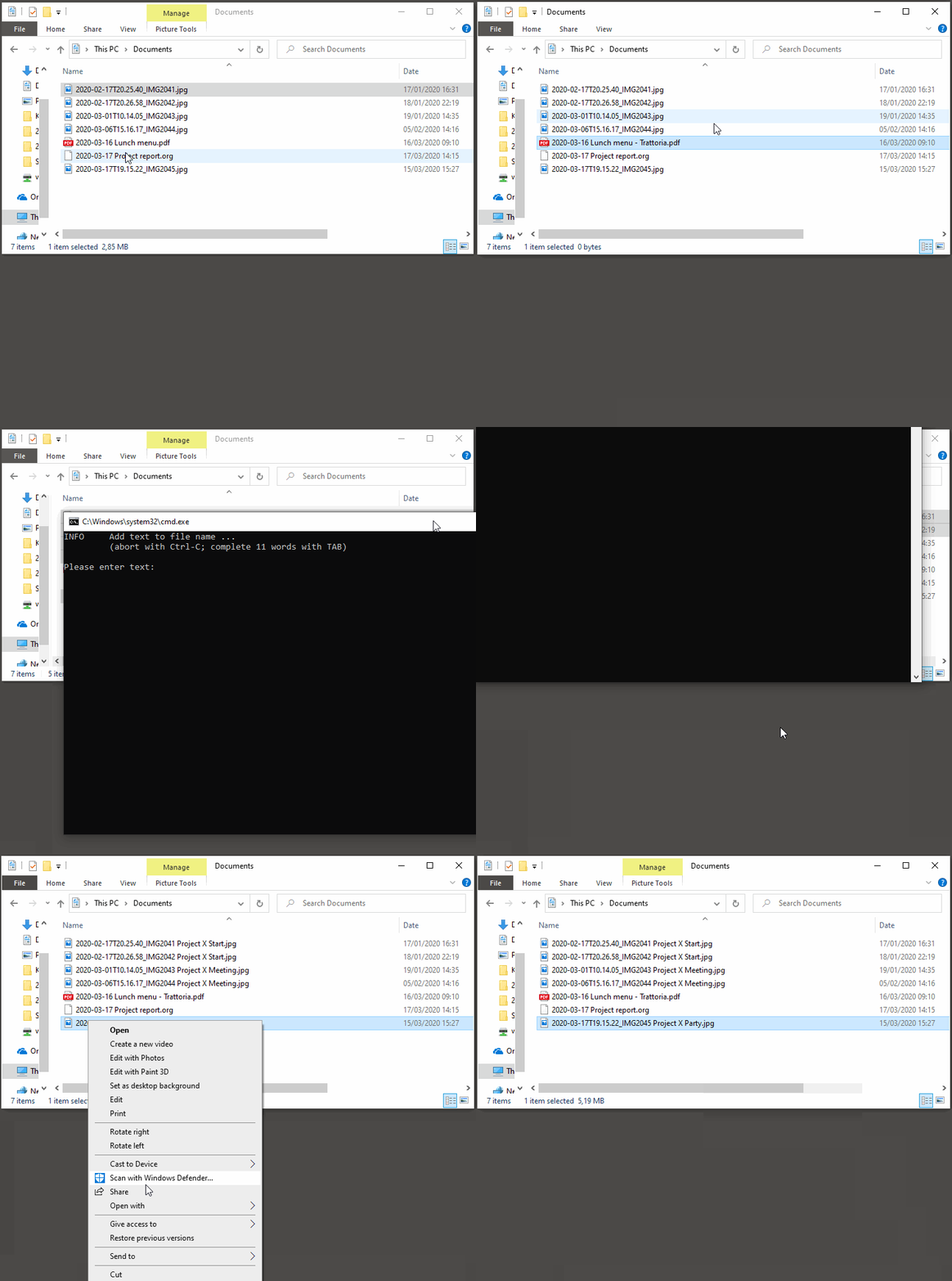
## Integration into Windows File Explorer
The easiest way to integrate `appendfilename` into File Explorer ("Send
to" context menu) is by using
[integratethis](https://github.com/novoid/integratethis).
Execute this in your command line environment:
``` example
pip install appendfilename integratethis
integratethis appendfilename --confirm
```
### Windows File Explorer for single files (manual method)
Use this only if the
[integratethis](https://github.com/novoid/integratethis) method can not
be applied:
Create a registry file `add_appendfilename_to_context_menu.reg` and edit
it to meet the following template. Please make sure to replace the paths
(python, `USERNAME` and `appendfilename`) accordingly:
``` example
Windows Registry Editor Version 5.00
;; for files:
[HKEY_CLASSES_ROOT\*\shell\appendfilename]
@="appendfilename (single file)"
[HKEY_CLASSES_ROOT\*\shell\appendfilename\command]
@="C:\\Python36\\python.exe C:\\Users\\USERNAME\\src\\appendfilename\\appendfilename\\__init__.py -i \"%1\""
```
Execute the reg-file, confirm the warnings (you are modifying your
Windows registry after all) and cheer up when you notice "appendfilename
(single file)" in the context menu of your Windows Explorer.
As the heading and the link name suggests: [this method works on single
files](https://stackoverflow.com/questions/6440715/how-to-pass-multiple-filenames-to-a-context-menu-shell-command).
So if you select three files and invoke this context menu item, you will
get three different filetag-windows to tag one file each.
### Windows File Explorer for single and multiple selected files (manual method)
Use this only if the
[integratethis](https://github.com/novoid/integratethis) method can not
be applied:
Create a batch file in your home directory. Adapt the paths to meet your
setup. The content looks like:
``` example
C:\Python36\python.exe C:\Users\USERNAME\src\appendfilename\appendfilename\__init__.py -i %*
```
If you want to confirm the process (and see error messages and so
forth), you might want to append as well following line:
``` example
set /p DUMMY=Hit ENTER to continue ...
```
My batch file is located in `C:\Users\USERNAME\bin\appendfilename.bat`.
Now create a lnk file for it (e.g., via Ctrl-Shift-drag), rename the lnk
file to `appendfilename.lnk` and move the lnk file to
`~/AppData/Roaming/Microsoft/Windows/SendTo/`.
This way, you get a nice entry in your context menu sub-menu "Send to"
which is also correctly tagging selection of files as if you put the
list of selected items to a single call of appendfilename.
## Integrating into Geeqie
I am using [geeqie](http://geeqie.sourceforge.net/) for
browsing/presenting image files. After I mark a set of images for adding
file name descriptions, I just have to press `a` and I get asked for the
input string. After entering the string and RETURN, the filenames are
modified accordingly.
Using GNU/Linux, this is quite easy accomplished. The only thing that is
not straight forward is the need for a wrapper script. The wrapper
script does provide a shell window for entering the tags.
`vk-appendfilename-interactive-wrapper-with-gnome-terminal.sh` looks
like:
``` bash
#!/bin/sh
/usr/bin/gnome-terminal \
--geometry=73x5+330+5 \
--hide-menubar \
-x /home/vk/src/appendfilename/appendfilename/__init__.py "${@}"
#end
```
In `$HOME/.config/geeqie/applications` I wrote two desktop files such
that geeqie shows the wrapper scripts as external editors to its image
files:
`$HOME/.config/geeqie/applications/add-tags.desktop` looks like:
``` example
[Desktop Entry]
Name=appendfilename
GenericName=appendfilename
Comment=
Exec=/home/vk/src/misc/vk-appendfilename-interactive-wrapper-with-gnome-terminal.sh %F
Icon=
Terminal=true
Type=Application
Categories=Application;Graphics;
hidden=false
MimeType=image/*;video/*;image/mpo;image/thm
Categories=X-Geeqie;
```
In order to be able to use the keyboard shortcuts `a`, you can define
them in geeqie:
1. Edit \> Preferences \> Preferences … \> Keyboard.
2. Scroll to the bottom of the list.
3. Double click in the `KEY`-column of `appendfilename` and choose your
desired keyboard shortcut accordingly.
I hope this method is as handy for you as it is for me :-)
## Integration into Thunar
[Thunar](https://en.wikipedia.org/wiki/Thunar) is a popular GNU/Linux
file browser for the xfce environment.
Unfortunately, it is rather complicated to add custom commands to
Thunar. I found [a good
description](https://askubuntu.com/questions/403922/keyboard-shortcut-for-thunar-custom-actions)
which you might want to follow.
To my disappoinment, even this manual confguration is not stable
somehow. From time to time, the IDs of `$HOME/.config/Thunar/uca.xml`
and `$HOME/.config/Thunar/accels.scm` differ.
For people using Org-mode, I automated the updating process (not the
initial adding process) to match IDs again:
Script for checking "tag": do it `tag-ID` and path in `accels.scm`
match?
``` example
#+BEGIN_SRC sh :var myname="tag"
ID=`egrep -A 2 "$myname" $HOME/.config/Thunar/uca.xml | grep unique-id | sed 's#.*##' | sed 's#<.*$##'`
echo "$myname-ID of uca.xml: $ID"
echo "In accels.scm: "`grep -i "$ID" $HOME/.config/Thunar/accels.scm`
#+END_SRC
```
If they don't match, following script re-writes `accels.scm` with the
current ID:
``` example
#+BEGIN_SRC sh :var myname="tag" :var myshortcut="t"
ID=`egrep -A 2 "$myname" $HOME/.config/Thunar/uca.xml | grep unique-id | sed 's#.*##' | sed 's#<.*$##'`
echo "appending $myname-ID of uca.xml to accels.scm: $ID"
mv $HOME/.config/Thunar/accels.scm $HOME/.config/Thunar/accels.scm.OLD
grep -v "\"$myshortcut\"" $HOME/.config/Thunar/accels.scm.OLD > $HOME/.config/Thunar/accels.scm
rm $HOME/.config/Thunar/accels.scm.OLD
echo "(gtk_accel_path \"/ThunarActions/uca-action-$ID\" \"$myshortcut\")" >> $HOME/.config/Thunar/accels.scm
#+END_SRC
```
## Integration into FreeCommander
[FreeCommander](http://freecommander.com/en/summary/) is a [orthodox
file
manager](https://en.wikipedia.org/wiki/File_manager#Orthodox_file_managers)
for Windows. You can add appendfilename as an favorite command:
- Tools → Favorite tools → Favorite tools edit… (S-C-y)
- Create new toolbar (if none is present)
- Icon for "Add new item"
- Name: appendfilename
- Program or folder: \
- `appendfilename.bat` looks like: (please do modify the paths to meet
your requirement)
``` example
C:\Python36\python.exe C:\Users\YOURUSERNAME\src\appendfilename\appendfilename\__init__.py %*
```
``` example
REM optionally: set /p DUMMY=Hit ENTER to continue...
```
- Start folder: `%ActivDir%`
- Parameter: `%ActivSel%`
- [x] Enclose each selected item with `"`
- Hotkey: select next available one such as `Ctrl-1` (it gets
overwritten below)
- remember its name such as "Favorite tool 01"
- OK
So far, we've got `appendfilename` added as a favorite command which can
be accessed via menu or icon toolbar and the selected keyboard shortcut.
If you want to assign a different keyboard shortcut than `Ctrl-1` like
`Alt-a` you might as well follow following procedure:
- Tools → Define keyboard shortcuts…
- Scroll down to the last section "Favorite tools"
- locate the name such as "Favorite tool 01"
- Define your shortcut of choice like `Alt-a` in the right hand side
of the window
- If your shortcut is taken, you'll get a notification. Don't
overwrite essential shortcuts you're using.
- OK
# Related tools and workflows
This tool is part of a tool-set which I use to manage my digital files
such as photographs. My work-flows are described in [this blog
posting](http://karl-voit.at/managing-digital-photographs/) you might
like to read.
In short:
For **tagging**, please refer to
[filetags](https://github.com/novoid/filetags) and its documentation.
See [date2name](https://github.com/novoid/date2name) for easily adding
ISO **time-stamps or date-stamps** to files.
For **easily naming and tagging** files within file browsers that allow
integration of external tools, see
[appendfilename](https://github.com/novoid/appendfilename) (once more)
and [filetags](https://github.com/novoid/filetags).
Moving to the archive folders is done using
[move2archive](https://github.com/novoid/move2archive).
Having tagged photographs gives you many advantages. For example, I
automatically [choose my **desktop background image** according to the
current
season](https://github.com/novoid/set_desktop_background_according_to_season).
Files containing an ISO time/date-stamp gets indexed by the
filename-module of [Memacs](https://github.com/novoid/Memacs).
Here is [a 45 minute talk I
gave](https://glt18-programm.linuxtage.at/events/321.html) at [Linuxtage
Graz 2018](https://glt18.linuxtage.at/) presenting the idea of and
workflows related to appendfilename and other handy tools for file
management:
[bin/2018-05-06 filetags demo slide for video preview with video button
–
screenshots.png](https://media.ccc.de/v/GLT18_-_321_-_en_-_g_ap147_004_-_201804281550_-_the_advantages_of_file_name_conventions_and_tagging_-_karl_voit/)
# How to Thank Me
I'm glad you like my tools. If you want to support me:
- Send old-fashioned **postcard** per snailmail - I love personal
feedback!
- see [my address](http://tinyurl.com/j6w8hyo)
- Send feature wishes or improvements as an issue on GitHub
- Create issues on GitHub for bugs
- Contribute merge requests for bug fixes
- Check out my other cool [projects on
GitHub](https://github.com/novoid)